



If your VPS is experiencing network connectivity issues, you can use the VNC console from your client area to access the server and check its network configuration.
VNC allows you to access the VPS console even when the normal network connection is not working.
Follow the steps below to check and correct your VPS network settings.
Step 1: Log in to Your Client Area
Log in to your client area using your registered login credentials.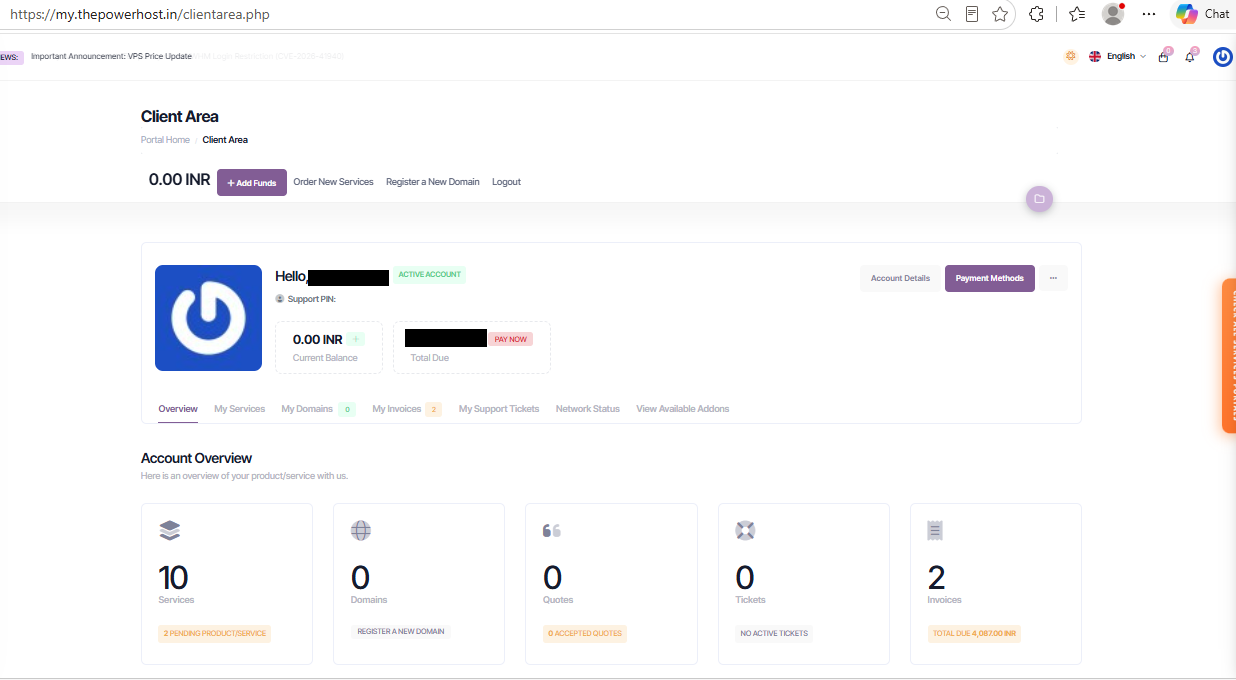
Step 2: Select the Affected VPS
Select the VPS plan experiencing the network issue. Make sure you choose the correct server before proceeding. 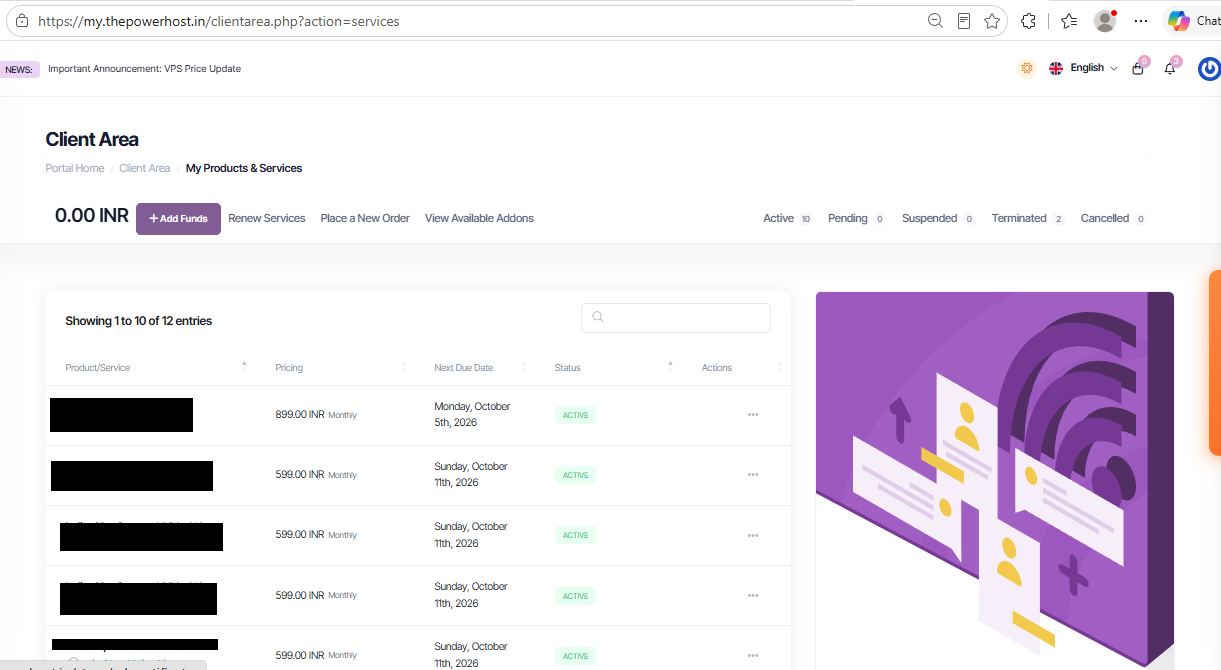
Step 3: Open VNC
Open the VNC option for the selected VPS.
VNC provides console access to your VPS even if its normal network connection is unavailable. 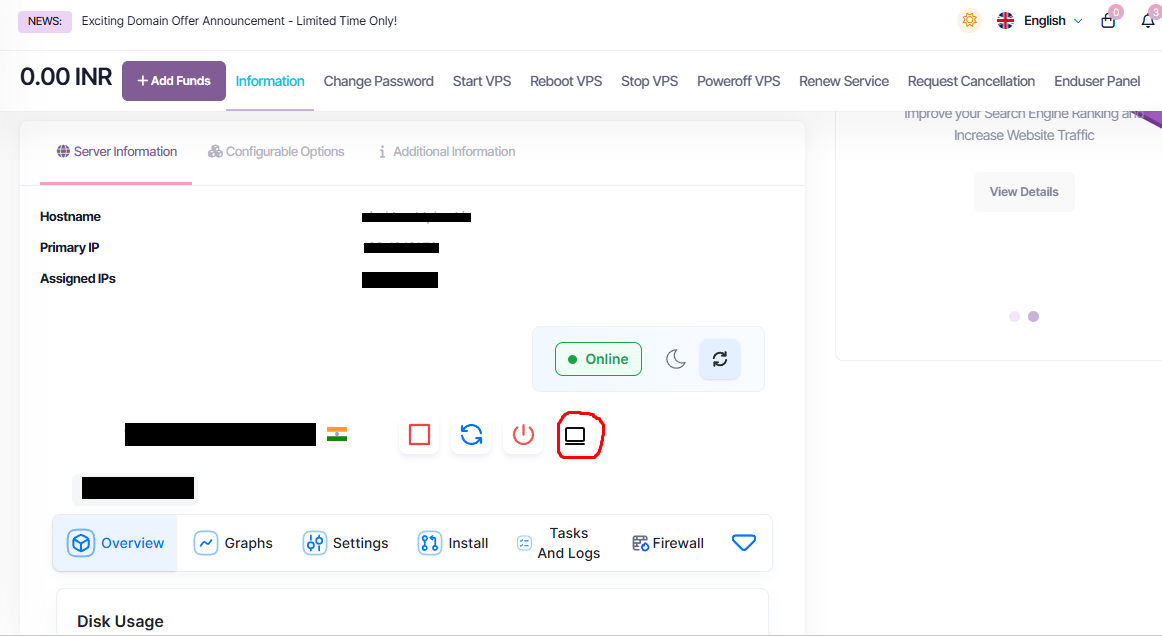
Step 4: Launch VNC
Click Launch VNC and wait for the console to open. 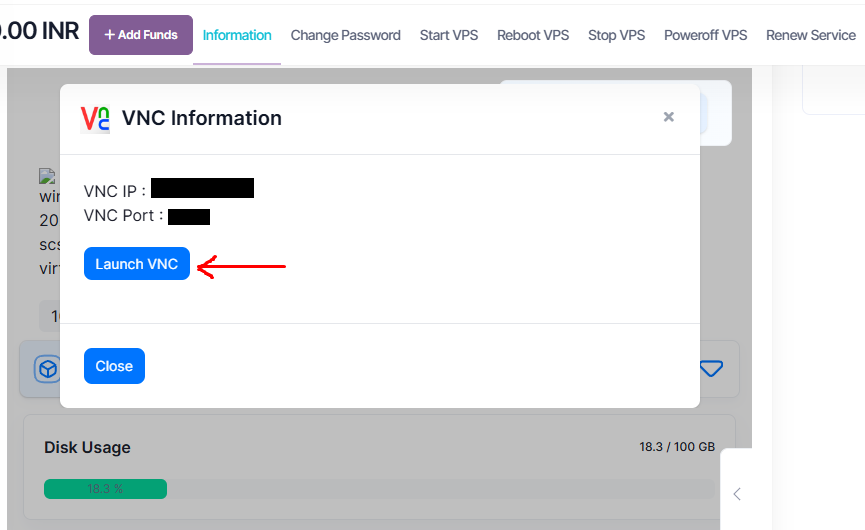
Step 5: Log in to Your VPS
Log in through the VNC console using your VPS login credentials. 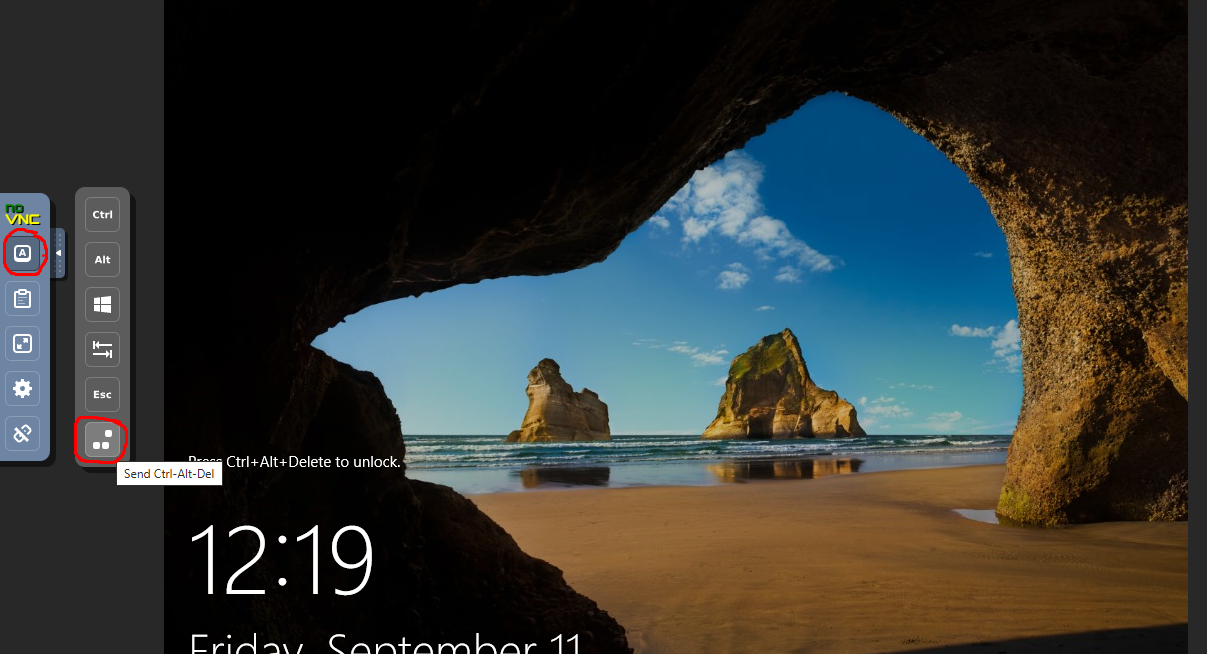
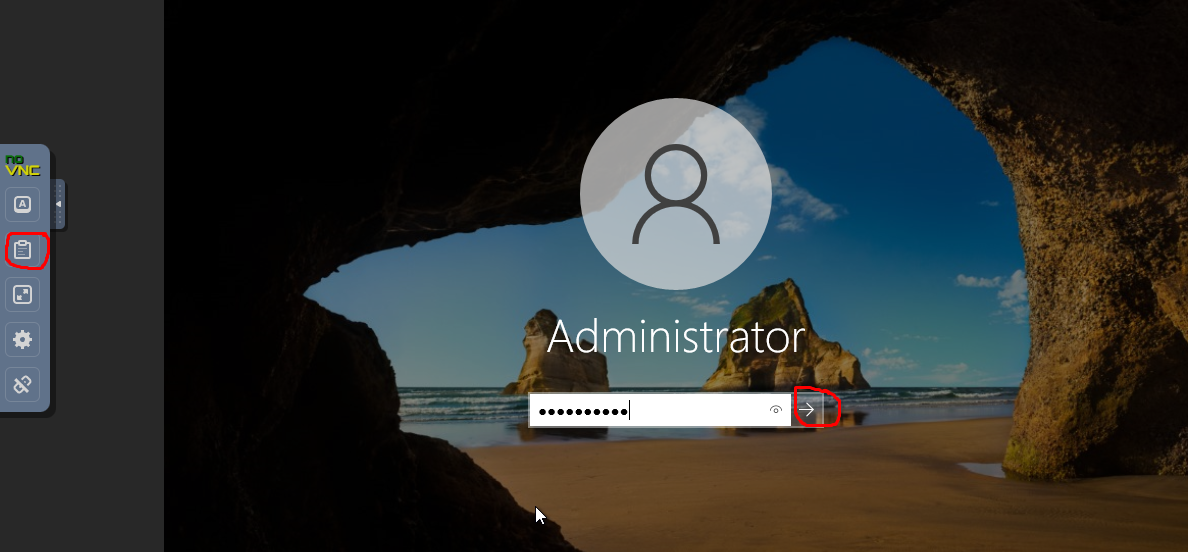
Step 6: Open the Network Tab
After logging in, navigate to the Network tab. This section displays your VPS network configuration. 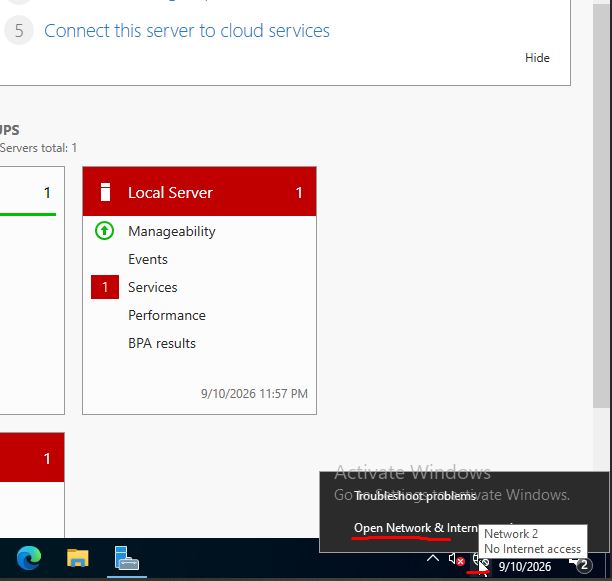
Step 7: Check Your Network Configuration
Carefully check the network settings, including:
-
IP address
-
Gateway
-
Subnet mask
-
Other displayed network details
Make sure you are checking the configuration for the correct VPS. 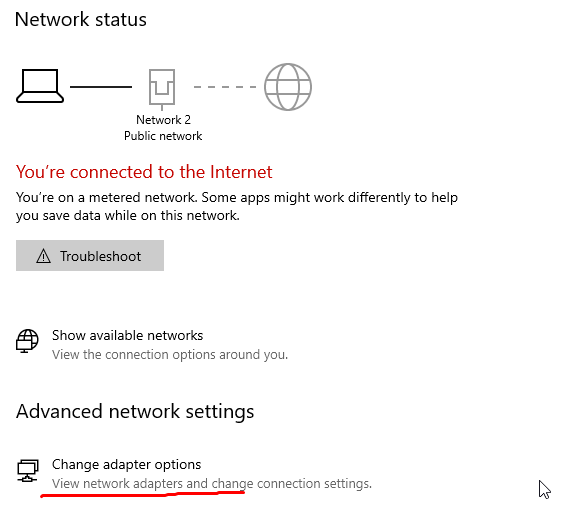
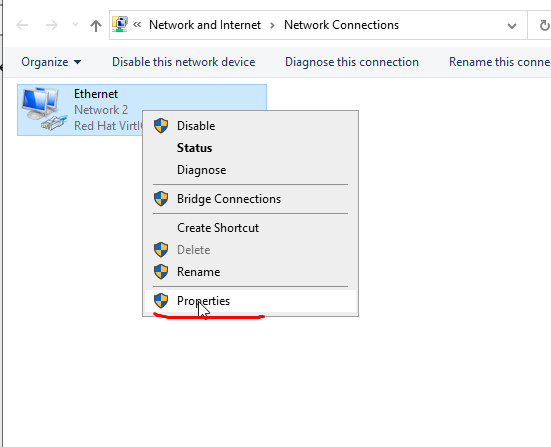
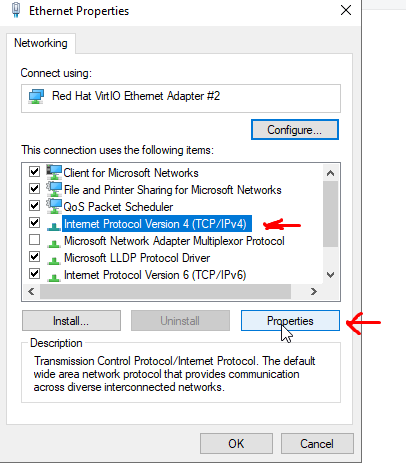
Step 8: Apply the Correct Network Settings
Enter or select the correct network details provided for your VPS.
Use the following subnet masks for the corresponding IP address series:
-
103.49.131.x: 255.255.255.0
-
144.79.166.x: 255.255.0.0
Make sure the IP address, gateway, subnet mask, and other network details match the configuration provided for your VPS. 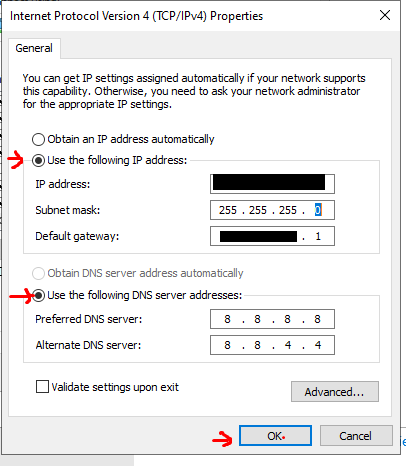
Step 9: Save the Changes
After checking and updating the settings, save or apply the network configuration. 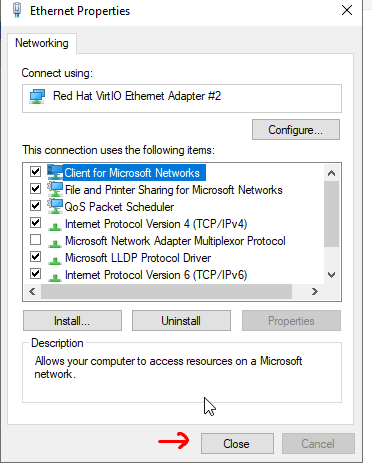
Step 10: Restart Networking if Required
If the system asks you to restart the VPS, follow the on-screen instructions.
Step 11: Test the Network Connection
After applying the changes, check whether:
-
Your VPS can access the internet.
-
Your required services are working correctly.
-
The network connectivity issue has been resolved.
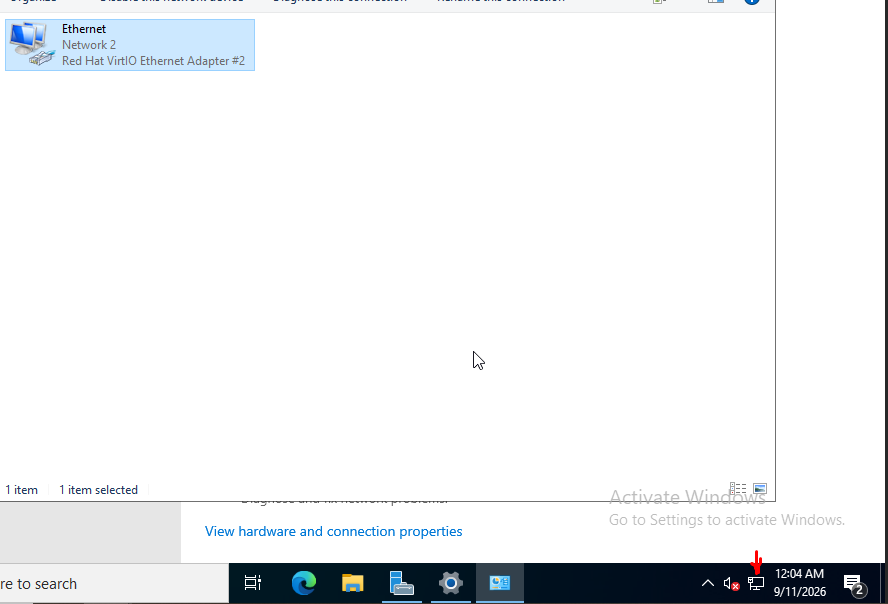
Step 12: Confirm the Issue Is Resolved
If your VPS is accessible and the required services are working normally, the network issue has been resolved.